
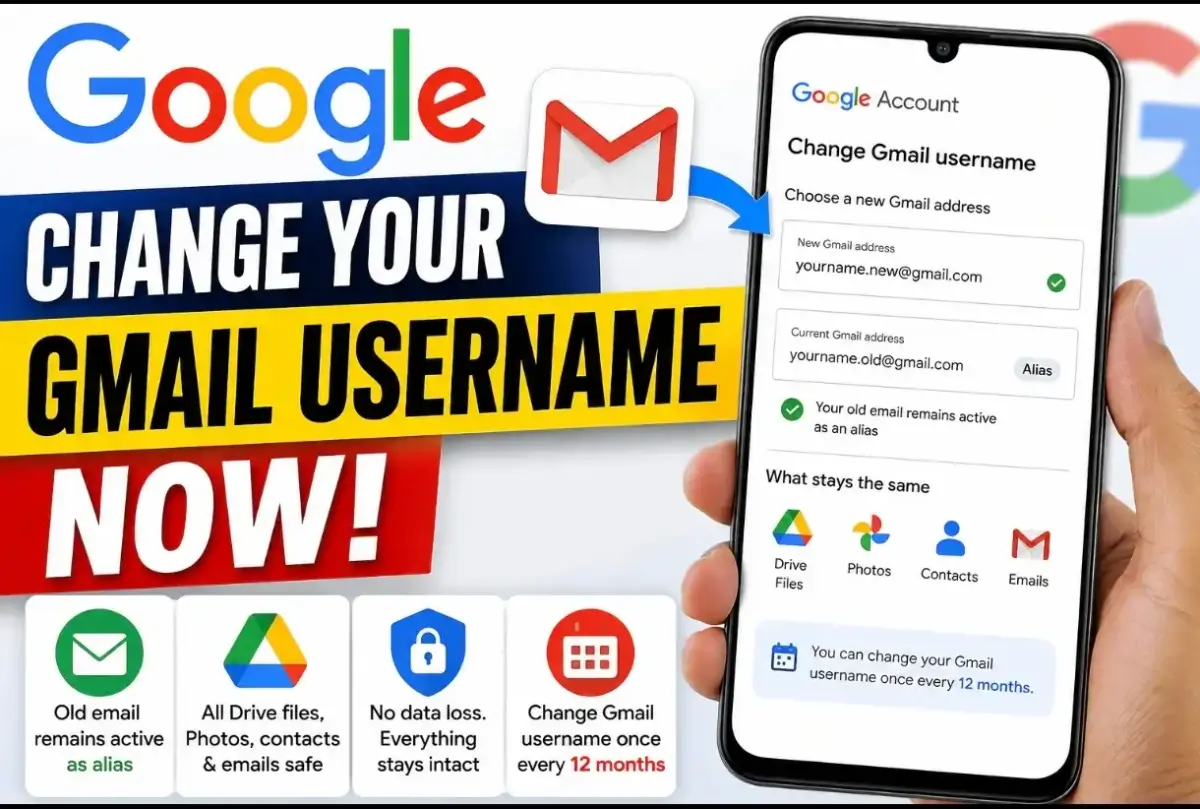

Google has launched a long-awaited feature that lets users change their primary @gmail.com username directly through Google Account settings without losing emails, Google Drive files, or Photos, while keeping the old address active as an alias.
- Google allows users to change their @gmail.com username directly through Google Account settings.
- Your old email address remains active as an alias, meaning you won't miss incoming messages.
- All Drive files, Photos, contacts, and emails are preserved without data loss.
- Users can change their Gmail username once every 12 months.
Google Finally Solves a 22-Year Gmail Problem
For more than two decades, creating a Gmail address meant locking yourself into that exact username permanently. Millions of users who registered embarrassing or unprofessional email IDs during their school or teenage years had no choice but to start over with a fresh account—losing years of emails, Google Drive files, Google Photos, and active app subscriptions in the process. In a massive system update, Google has officially rolled out the ability to change your primary @gmail.com username directly from your Google Account settings.
Key Features and Rules of the Gmail Address Update
This long-awaited feature separates your permanent Google Account identity from the email address label associated with it. Here is everything you need to know about how the system operates:
- Old Address Becomes an Alias: When you update your Gmail address, your original email ID is not deleted. It stays permanently linked to your Google Account as an alternate alias, ensuring you never miss emails sent to your old address.
- Zero Data Loss: All your existing emails, contacts, Google Drive documents, Google Photos library, Play Store purchases, and YouTube subscriptions remain 100% intact.
- Sign-In Protection: You can continue to sign into your Google Account using either your old or new email address.
- Frequency Limitations: To prevent misuse, Google limits users to changing their Gmail username once every 12 months, with a lifetime cap of up to 3 to 4 changes per account.
- Exclusive Ownership: Nobody else can claim or re-register your former @gmail.com address. It stays reserved exclusively for your account.
Step-by-Step Guide: How to Change Your Gmail Address
If the update has been activated for your account, follow these simple steps to update your username:
- Open your web browser and navigate to your official Google Account Settings.
- On the left-hand navigation menu, click on Personal info.
- Scroll down to the Contact info section and select Email.
- Click on Google Account email.
- If eligible, you will see an option that says "Change Google Account email". Click it.
- Enter your preferred new @gmail.com username and click Save / Change Email.
What If You Don't See the Option Yet?
Google is rolling out this feature gradually across different regions and account types. If the "Change Google Account email" button is grayed out or not visible, your account has not yet received the server-side update. In the meantime, you can still use classic alternatives such as creating a new account and enabling automatic email forwarding or adding an email alias under Gmail settings. For more tech guides and daily digital updates, visit our latest tech news section.
Frequently Asked Questions
Admin
adminPassionate journalist and digital news editor committed to delivering accurate, timely, and fact-checked news.
Related Articles




Latest Articles
Chinese Rocket Failure: Long March 7A Explodes 85...
Aug 13, 2026
Millions Across UK and Europe Witness Dramatic Sol...
Aug 13, 2026
Colombia Earthquake: 7.4-Magnitude Quake Kills 132
Aug 11, 2026
Jharkhand Protest: Police Use Water Cannons in Ran...
Aug 10, 2026
Comments (0)
Leave a Comment
No comments yet. Be the first to comment!