
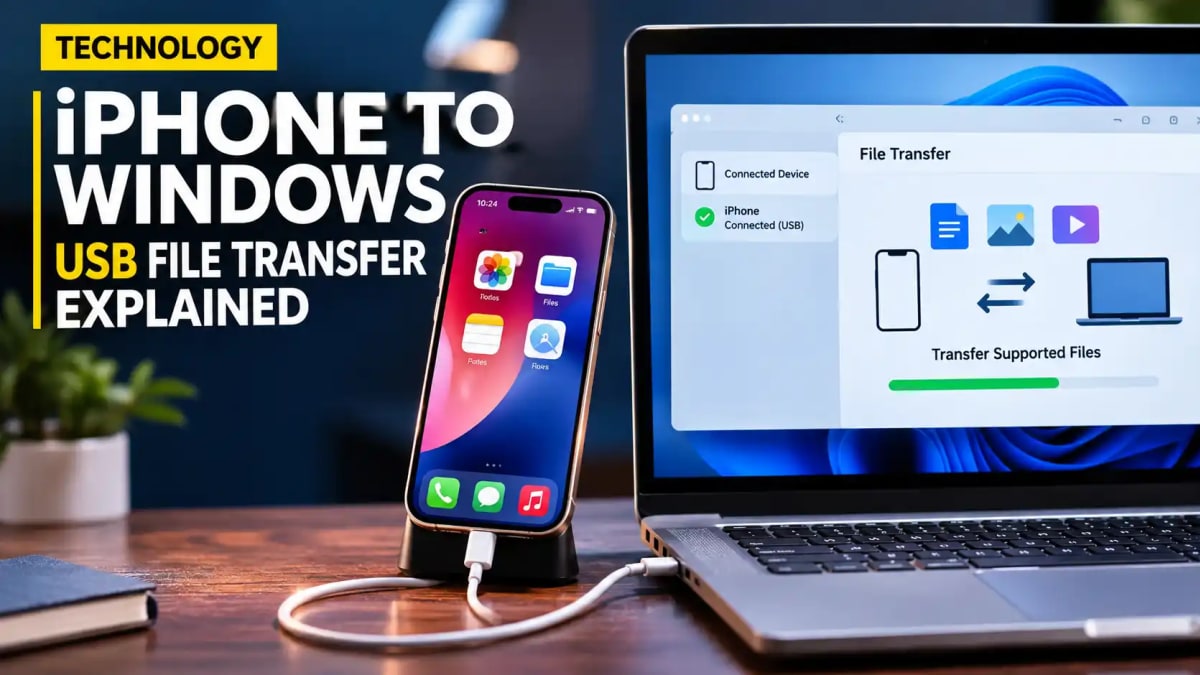

November 18, 2026: Apple iPhone users can connect their devices to Windows computers using a USB cable to transfer supported files, sync content, and manage backups. A driver listing in the Microsoft Update Catalog—Apple, Inc. – USBDevice – 552.0.0.0, published on April 24, 2025—has renewed online attention around iPhone-to-Windows connectivity. However, this listing does not represent the introduction of a brand-new file-transfer feature; it is a maintenance update to the underlying communication driver that helps Windows recognize Apple hardware.
Understanding the distinction between the system driver and Apple's file-sharing software helps Windows users resolve connection errors and manage local files without relying entirely on wireless transfers or cloud storage.
What Is Apple's USB Device Driver 552.0.0.0?
The Apple Mobile Device USB Driver enables compatible Windows computers to detect and communicate with connected iPhones and iPads over a physical cable. According to the Microsoft Update Catalog, driver version 552.0.0.0 was published on April 24, 2025, for Windows 10 servicing platforms.
Without the correct driver and official Apple device software installed, a Windows PC may charge a plugged-in iPhone while failing to display it as a connected device. Installing the driver resolves hardware recognition, though actual file movement remains governed by Apple's software permissions and individual iOS app capabilities.
USB Driver vs. Apple Devices App: How They Work Together
| Component | Primary Role | User Action Required |
|---|---|---|
| Apple Mobile Device USB Driver (552.0.0.0) | Enables Windows OS to detect and establish low-level USB communication with iPhones and iPads. | Installed automatically via Windows Update or bundled with official Apple software. |
| Apple Devices Windows App | Provides the user interface for backups, syncing, and app-specific File Sharing. | Downloaded from the Microsoft Store on Windows 10 or later; requires tapping "Trust" on the iPhone. |
How to Transfer Files Between Windows and an iPhone Using USB
USB file transfer between iPhones and Windows PCs has been supported for years through official Apple software. Users can move compatible documents directly over a cable using the Apple Devices app by following these steps:
- Install or update the official Apple Devices application on a compatible Windows 10 or later computer.
- Connect the iPhone or iPad using a certified USB or USB-C cable that supports data transfer.
- Unlock the iOS device screen.
- When the "Trust This Computer?" prompt appears on the iPhone, tap Trust and enter your device passcode.
- Open the Apple Devices app on the PC and select your connected iPhone from the sidebar.
- Navigate to the Files section.
- Select an installed iOS app that supports Apple's File Sharing feature, then drag and drop compatible files into the app window.
Can Users Access the Entire iPhone Storage From Windows?
Connecting an iPhone to a Windows PC does not provide unrestricted file-system browsing like a standard USB flash drive or an Android device configured for file transfer. Apple's File Sharing operates strictly on an app-by-app basis.
Users can add or retrieve documents inside applications explicitly designed to support File Sharing, but they cannot freely browse internal iOS system directories or access data locked inside unsupported apps through Windows File Explorer.
What Should Users Do If Windows Does Not Recognize Their iPhone?
If an iPhone draws power over USB but fails to appear inside the Apple Devices app, Apple Support recommends checking the following troubleshooting steps:
- Verify that the USB or USB-C cable supports data transfer rather than charging only.
- Unlock the iPhone before connecting it to the PC and confirm the Trust prompt.
- Test an alternative USB port directly on the computer rather than an unpowered hub.
- Update the Apple Devices app via the Microsoft Store and check Windows Update for official Apple driver updates.
- Avoid downloading standalone driver files from unverified third-party websites.
Frequently Asked Questions
Chandrabhag
Senior EditorChandrabhag is an editorial writer and journalist for Digital Bharat Times, specializing in verified news reporting, regional developments, and national policy analysis.














Comments (0)
Leave a Comment
No comments yet. Be the first to comment!